Adding HTML
Using Form Section Designer you can also add arbitrary HTML to your forms. For example, you may want to add some static images or add a descriptive and text. To add HTML to your form:
- Click on the drop down next to the
 icon of the Form Designer toolbaricon (or alternatively drag and drop the
 HTMLelement from the palette of available elements on the right of the form - Select “HTML row from the drop down menu.
- The HTML dialog will come up. Add HTML to be placed into the form cell
note
If you refer to images in your HTML place the image files into some subdirectory of the web application directory of the web server. For the default Windows installation of AwareIM this directory could bec:\AwareIM\Tomcat\webapps\AwareIM\myimages.Here is an example of a form that uses an HTML cell:
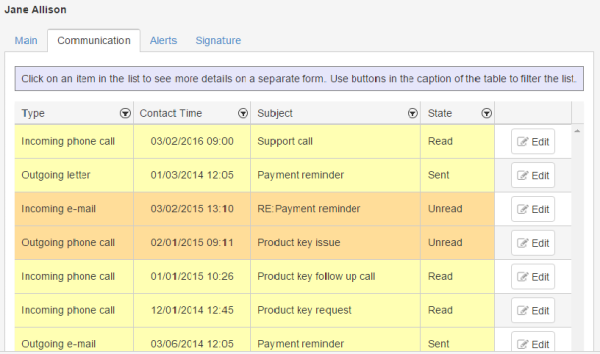
Note the explanation with the grey background at the top of the form has the following HTML:
<div style="border: solid 1px gray; PADDING: 8px; BACKGROUND-COLOR: lavender; TEXT-ALIGN: justify; LINE-HEIGHT:1.2em">
Click on an item in the list to see more details on a separate form. Use buttons in the caption of the table to filter the list.</div>
You can refer to the attributes of the object whose form is being displayed. For example,
<b><<Customer.EmailAddress>></b>